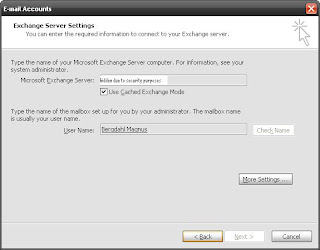
Description: A user complains that when sending a meeting request in Outlook to a coworker, several others also get that same meeting request that shouldn't get it.
Cause: This is caused by delegate rights in Outlook / AD
Solution: Check Outlook's delegate settings of the receiver of the meeting request. When adding a delegate in Outlook, there is a checkbox which is checked by default (easy to miss) saying that it shall give a copy of meeting requests to that delegate. (see pic above).
OBS! Deleting delegates in AD under Exchange General > Delivery Options > Send on Behalf doesn't remove them from user's Outlook. However the reverse order does remove them from AD.
onsdag 30 november 2011
Invalid XML, the view cannot be loaded
Description:
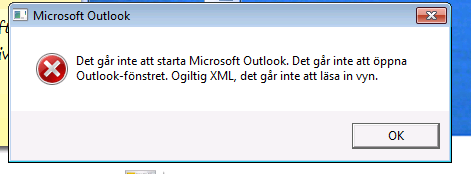
User get error message when starting Outlook "Cannot start Microsoft Outlook. Cannot open the Outlook window. Invalid XML, the view cannot be loaded"
Solution:
Start Outlook with switch /resetnavpane
User get error message when starting Outlook "Cannot start Microsoft Outlook. Cannot open the Outlook window. Invalid XML, the view cannot be loaded"
(The error message in swedish)
Solution:
Start Outlook with switch /resetnavpane
Etiketter:
Outlook 2010,
XML
tisdag 12 juli 2011
Interface not registered
Description: You receive the “Interface not registered” error message when you try to send an e-mail message in Outlook 2002
[SWE] Felmeddelandet "Gränssnittet har inte registrerats" visas vid försök att skicka ett e-postmeddelande.
Cause: User is using MS Word as e-mail editor. The connection between MS Word and Outlook has failed.
Solution:
1. Click START
2. Click run
3. Type command regsvr32 ole32.dll and then click OK or press ENTER
4. try again
[SWE] Felmeddelandet "Gränssnittet har inte registrerats" visas vid försök att skicka ett e-postmeddelande.
Cause: User is using MS Word as e-mail editor. The connection between MS Word and Outlook has failed.
Solution:
1. Click START
2. Click run
3. Type command regsvr32 ole32.dll and then click OK or press ENTER
4. try again
Etiketter:
Gränsnitt,
Interface,
OLE,
Outlook 2002
måndag 11 juli 2011
"The operation failed due to network or other communication problems".
Description: User get message saying "The operation failed due to network or other communication problems" when sending mail in Outlook.
[SWE] "Åtgärden misslyckades pga. nätverk eller andra kommunikations problem"
Different scenarios can be that user tries to send an attachment from within an application like MS word or directly from a network share.
Solution:
1. Click START
2. Click run
3. Type regsvr32 ole32.dll then ENTER or click OK
For Windows 7, Run this command from the search field when clicking Windows button.
[SWE] "Åtgärden misslyckades pga. nätverk eller andra kommunikations problem"
Different scenarios can be that user tries to send an attachment from within an application like MS word or directly from a network share.
Solution:
1. Click START
2. Click run
3. Type regsvr32 ole32.dll then ENTER or click OK
For Windows 7, Run this command from the search field when clicking Windows button.
Etiketter:
OLE,
Outlook 2002
tisdag 24 maj 2011
The custom form could not be opened
Description: User cannot save items in calendar. The following error message shows:

"The custom form could not be opened. Outlook will use an
Outlook form instead. The form required to view this message cannot be
displayed. Contact your administrator."
Solution: Empty form cache in Outlook (Tools menu > Options > Other tab > Advanced button > Customs forms button (lower left corner) > Manage forms button > Clean cache button)

"The custom form could not be opened. Outlook will use an
Outlook form instead. The form required to view this message cannot be
displayed. Contact your administrator."
Solution: Empty form cache in Outlook (Tools menu > Options > Other tab > Advanced button > Customs forms button (lower left corner) > Manage forms button > Clean cache button)
Etiketter:
calender,
kalender,
Outlook 2002
onsdag 24 november 2010
Cannot see contact suggestions when sending e-mails
Description: User has lost his/hers contact history when sending e-mails (see pic below).

Cause:
Can be either of 2 things below
1. The function is turned off. (Tools > Options > E-mails Options > Advanced E-mail Options > Suggest names while completing To, Cc and Bcc fields (must be checked to be on)
2.The history is stored in .NK2 files in the users profile. Name is same as the name on the users profile. When creating a new mailprofile, this information gets replaced with a new file.
Location on Windows 7: C:\Users\-YOUR USERNAME-\AppData\Roaming\Microsoft\Outlook
Location on Windows Xp: C:\Documents and Settings\-YOUR USERNAME-\Application Data\Microsoft\Outlook
Solution 2: Close Outlook if it's not closed already. Rename the new file to something like .old at the end or something. Then rename the old NK2-file to the same name as the new file. Then start Outlook and all history should be restored.

Cause:
Can be either of 2 things below
1. The function is turned off. (Tools > Options > E-mails Options > Advanced E-mail Options > Suggest names while completing To, Cc and Bcc fields (must be checked to be on)
2.The history is stored in .NK2 files in the users profile. Name is same as the name on the users profile. When creating a new mailprofile, this information gets replaced with a new file.
Location on Windows 7: C:\Users\-YOUR USERNAME-\AppData\Roaming\Microsoft\Outlook
Location on Windows Xp: C:\Documents and Settings\-YOUR USERNAME-\Application Data\Microsoft\Outlook
Solution 2: Close Outlook if it's not closed already. Rename the new file to something like .old at the end or something. Then rename the old NK2-file to the same name as the new file. Then start Outlook and all history should be restored.
Etiketter:
Outlook 2007,
Windows 7,
Windows XP
fredag 29 oktober 2010
Outlook won't close down
Description: User cannot close down Outlook completely. Outlook still leaves a greyish icon that cannot be removed by any other than Taskmanager. (closing OUTLOOK.EXE)

Solution: Use Taskmanager to close down the OUTLOOK.EXE process and then create a new mailprofile. (http://support.microsoft.com//kb/829918/en-us)
OBS! The not connected Wi-Fi icon didn't have anything to do with this problem as the user was using cable.

Solution: Use Taskmanager to close down the OUTLOOK.EXE process and then create a new mailprofile. (http://support.microsoft.com//kb/829918/en-us)
OBS! The not connected Wi-Fi icon didn't have anything to do with this problem as the user was using cable.
Etiketter:
Outlook 2007
måndag 7 juni 2010
Missing Office button in Outlook 2007?
It was never there. The main window in Outlook 2007 uses the old Outlook 2003 theme. Only Outlook items such as appts & mail messages uses the new Office 2007 button.
Design flaw or meant to be? that is the question
Cannot start Microsoft Office Outlook
Description: User get errormessage "Cannot start Microsoft Office Outlook. Cannot open the Outlook window"

Solution(s):
1. Try start with Outlook.exe /safe . If that works it could be addin related. Try disable all addins and re-enable them one by one to find the faulty one.
2. Try create a new mailprofile.
3. Check if the other Office apps work OK (to pinpoint if whole Office is damaged or not). If they are not then do a Repair from Office installation setup.
4. Try start Outlook with switches /cleanprofile and /resetnavpane

Solution(s):
1. Try start with Outlook.exe /safe . If that works it could be addin related. Try disable all addins and re-enable them one by one to find the faulty one.
2. Try create a new mailprofile.
3. Check if the other Office apps work OK (to pinpoint if whole Office is damaged or not). If they are not then do a Repair from Office installation setup.
4. Try start Outlook with switches /cleanprofile and /resetnavpane
Etiketter:
Outlook 2007,
Windows 7
onsdag 14 oktober 2009
Not Been Installed For The Current User Error
Description: When you start an Office program, you get errormessage such as "Microsoft Office Outlook has not been installed for the current user. Please run setup to install the application" (see pic below for Word example. It affects all Office applications)

Cause: Some MS update has affected the MSO.DLL file. Reinstall/repair won't help here.
Solution: Either uninstall the Office update that refers to Kb951944 (http://support.microsoft.com/?kbid=951944) or replace MSO.DLL with an older version of it (see here)

Cause: Some MS update has affected the MSO.DLL file. Reinstall/repair won't help here.
Solution: Either uninstall the Office update that refers to Kb951944 (http://support.microsoft.com/?kbid=951944) or replace MSO.DLL with an older version of it (see here)
Etiketter:
Outlook 2007,
Windows 7
onsdag 11 februari 2009
The operation failed
Description: When trying to interact with mail objects like for example try to move, set category etc this errormessage "The operation failed" shows up

Solution: Close Outlook and also check in Task manager if process OUTLOOK.EXE disappears, if not then mark it and close it down. Then start Outlook again and try to interact with a email (as what failed before and see if it works now).
Can also try to start Outlook with the switch /firstrun through START > Run > Outlook.exe /firstrun
Solution: Close Outlook and also check in Task manager if process OUTLOOK.EXE disappears, if not then mark it and close it down. Then start Outlook again and try to interact with a email (as what failed before and see if it works now).
Can also try to start Outlook with the switch /firstrun through START > Run > Outlook.exe /firstrun
Etiketter:
failed,
Outlook 2003
måndag 15 december 2008
Guide: Change startup folder
If you feel that you are not happy with the default startup folder in Outlook, you can change this in the settings. Here is how you do it:

3. In this view, click the tab Other

5. Click Browse (right of from Startup in this folder)
1. Click Tools
2. Click Options
3. In this view, click the tab Other
4. Click Advanced Options
5. Click Browse (right of from Startup in this folder)
6. Choose which folder you want view and click OK
7. Click OK
Etiketter:
guides,
Outlook 2002,
Outlook 2003
Guide: Remove 'Mark item as read when selection changes'
This is a guide about removing the option that marks emails as read when clicking/marking another email. For many this can be very annoying, especially when using shared mailboxes.
Follow below steps within Outlook to remove it:
1. Click Tools
2. Click Options (see picture below)

3. From this view, click the tab Other (see picture below)

4. Click Reading Pane (see picture below)

6. Click OK
7. Click OK again
Follow below steps within Outlook to remove it:
1. Click Tools
2. Click Options (see picture below)
3. From this view, click the tab Other (see picture below)
4. Click Reading Pane (see picture below)
5. Uncheck 'Mark item as read when selection changes' (see picture below)
6. Click OK
7. Click OK again
Etiketter:
guides,
Outlook 2002,
Outlook 2003,
selection
Guide: Create or add existing personal folder file (PST)
Here is a quick guide on how you either create a new personal folder file or open an existing one.

5. In this step you can decide which name, encryption and password you want on the file. If used for normal usage, just click OK (see picture below)

From Outlook, follow below steps:
1. Click File
1. Click File
2. Click Outlook Data File (see picture below)
3. In this step "New Outlook Data File" (which only shows up on Outlook 2003 and newer) you can chooose between two format on the file that you're about to create or open. Either the top one which is the newer Unicode format (can store up to 20Gb data) or the older one that is ANSI format (limited to only 2Gb) which was used for Outlook 2002 and older. If you just want to open a PST, then this step doesn't matter so much. Click OK and go on. (see picture below)
4. Here in this step is the window for you to point where you want this file to be created or where you have your existing one. Just decide where and click OK (see picture below)
5. In this step you can decide which name, encryption and password you want on the file. If used for normal usage, just click OK (see picture below)
6. The new file will be presented in the left tree view. Just copy/create items there as you like.
Etiketter:
guides,
Outlook 2002,
Outlook 2003,
PST
fredag 12 december 2008
Guide: Turn on feature Suggest names while completing To, Cc, and Bcc fields
Here is a guide on how to turn on the suggest names-feature when sending emails

3. Click E-mail Options that is under the Preferences tab and high up to the right corner.

4. Click Advanced E-mail Options at the middle of this window (see picture below)

5. Click checkbox Suggest names while completing To, Cc, and Bcc fields so it becomes checked.

6. Click OK
7. Click OK again
8. Click OK once again.
1. Click Tools
2. Click Options (see picture below)
3. Click E-mail Options that is under the Preferences tab and high up to the right corner.
4. Click Advanced E-mail Options at the middle of this window (see picture below)
5. Click checkbox Suggest names while completing To, Cc, and Bcc fields so it becomes checked.
6. Click OK
7. Click OK again
8. Click OK once again.
Etiketter:
guides,
Outlook 2002,
Outlook 2003
Guide: Adding a secondary exchange mailbox to Outlook
Here is an example on how you add a secondary exchange mailbox to your Outlook.
Note: This is not for POP3 mailboxes
1. Click Tools
2. Click E-mail accounts (see picture)

4. Click Change button (see picture below)
5. Click More Settings button (see picture below)
Note: This is not for POP3 mailboxes
1. Click Tools
2. Click E-mail accounts (see picture)
3. On this next window (see picture below), choose option "View or change existing e-mail accounts" and then click Next
4. Click Change button (see picture below)
5. Click More Settings button (see picture below)
7. Click Add button and type in the name of the mailbox. Then Click OK
8. Click Next
9. Click Finish
Etiketter:
exchange,
guides,
Outlook 2002,
Outlook 2003
Interface not registered error code: 0x80040155
Description: User gets error "Interface not registered error code: 0x80040155" when trying send emails
Solution:
1. Click START
2. Click Run
3. Type regsvr32.exe ole32.dll and click OK
Solution:
1. Click START
2. Click Run
3. Type regsvr32.exe ole32.dll and click OK
Etiketter:
0x80040155,
Outlook 2002
Guide: Change Outlook's secure temp folder
If user experiencing lots of trouble with loosing saved changes to documents opened from Outlook. Then it's maybe time to change the default location where Outlook stores opened attachments. Here is how you do it.
Solution:
1. Click START
2. Click Run
3. Type in Regedit and press OK
4. Go to: HKEY_Current_User – Software – Microsoft – Office – 11.0 (depends on what version you have on MS Office) – Outlook – Security
5. Doubleclick on OutlookSecureTempFolder and change the path to one more of your liking.
6. Close Registry editor
(example below where I have changed to c:\temp)
Etiketter:
guides,
OLK,
Outlook 2002,
Outlook 2003
Problem with displaying pictures in emails
Description: When user receives a email, the email looks weird and it seems to be missing pictures. There is only a rectangular box with a red cross in the upper left corner.
Cause: Outlook blocks images in HTML emails by default. This feature can be altered so it allows all pictures. However it can be so that the Outlook Secure Temp folder is full (the OLK folder: http://www.outlook-tips.net/archives/2003/20030828.htm) though only if you have the option to automatically download pictures turned on.
Solution: In Outlook, go to: Tools > Options > Security > Change Automatic Download Settings
Uncheck the option "Don't download pictures or other contant automatically in HTML e-mail" and press OK
If it's the OLK folder, that one is located at \\-YOUR COMPUTERNAME-\c$\Documents and Settings\-YOUR USER-\Local Settings\Temporary Internet Files. Use START > Run and type the path in and it will take you to it. Just delete everything in there and go back to Outlook and see if it works.
In Vista, the Secure Temp folder is located at C:\Users\-YOUR USER-\AppData\Local\Temporary Internet Files\Content.Outlook\X30MWG3N
Cause: Outlook blocks images in HTML emails by default. This feature can be altered so it allows all pictures. However it can be so that the Outlook Secure Temp folder is full (the OLK folder: http://www.outlook-tips.net/archives/2003/20030828.htm) though only if you have the option to automatically download pictures turned on.
Solution: In Outlook, go to: Tools > Options > Security > Change Automatic Download Settings
Uncheck the option "Don't download pictures or other contant automatically in HTML e-mail" and press OK
If it's the OLK folder, that one is located at \\-YOUR COMPUTERNAME-\c$\Documents and Settings\-YOUR USER-\Local Settings\Temporary Internet Files. Use START > Run and type the path in and it will take you to it. Just delete everything in there and go back to Outlook and see if it works.
In Vista, the Secure Temp folder is located at C:\Users\-YOUR USER-\AppData\Local\Temporary Internet Files\Content.Outlook\X30MWG3N
Etiketter:
HTML,
OLK,
Outlook 2002,
Outlook 2003,
pictures
torsdag 11 december 2008
Outlook is not default email client
Description: When clicking links on internet, the wrong email client opens up ex. Outlook Express instead of Outlook
Solution:
1. Click START
2. Click Run
3. Type in Regedit and then press ENTER
4. Go to HKEY_LOCAL_MACHINE > SOFTWARE > Clients > Mail
5. Change value in post (standard) to Microsoft Outlook
alternative solution:
1. Start Internet Explorer
2. Click Tools
3. Click Internet Options
4. Click Programs tab
5. Check so that Outlook is set as email handler.
Solution:
1. Click START
2. Click Run
3. Type in Regedit and then press ENTER
4. Go to HKEY_LOCAL_MACHINE > SOFTWARE > Clients > Mail
5. Change value in post (standard) to Microsoft Outlook
alternative solution:
1. Start Internet Explorer
2. Click Tools
3. Click Internet Options
4. Click Programs tab
5. Check so that Outlook is set as email handler.
Etiketter:
Outlook 2000,
Outlook 2002,
Outlook 2003
Prenumerera på:
Inlägg (Atom)